Is Your Resume ATS-Friendly? How to Check It for Free, and Fix What's Holding It Back
Many companies use an Applicant Tracking System (ATS) to collect and sort applications. Before a recruiter reads your resume, software often reads it first. It pulls out your contact details, job history and skills, and helps recruiters search for the keywords they care about.
If that software can't read your resume properly, or your resume doesn't use the words the job ad uses, strong experience can easily go unnoticed.
The good news is that you can check this yourself in about a minute. In this guide, we'll show you how to use the free ATS Resume Checker from OnlineResumeAI. We'll run a real example resume through it, fix what it finds and check again.
What the ATS Checker looks at
The checker gives your resume an intelligent ATS-readiness analysis across six areas:
| Area | The question it answers |
|---|---|
| File & formatting | Can an ATS read your file cleanly? |
| Contact details | Can a recruiter reach you? |
| Section structure | Does an ATS find the sections it expects? |
| Experience impact | Do your bullet points show results? |
| Skills & keywords | Will keyword searches find you? |
| Job description match (optional) | How many of the job's keywords appear in your resume? |
Every point in your score comes from a clearly named check, and every failed check tells you what to change.
Step 1: Open the ATS Checker
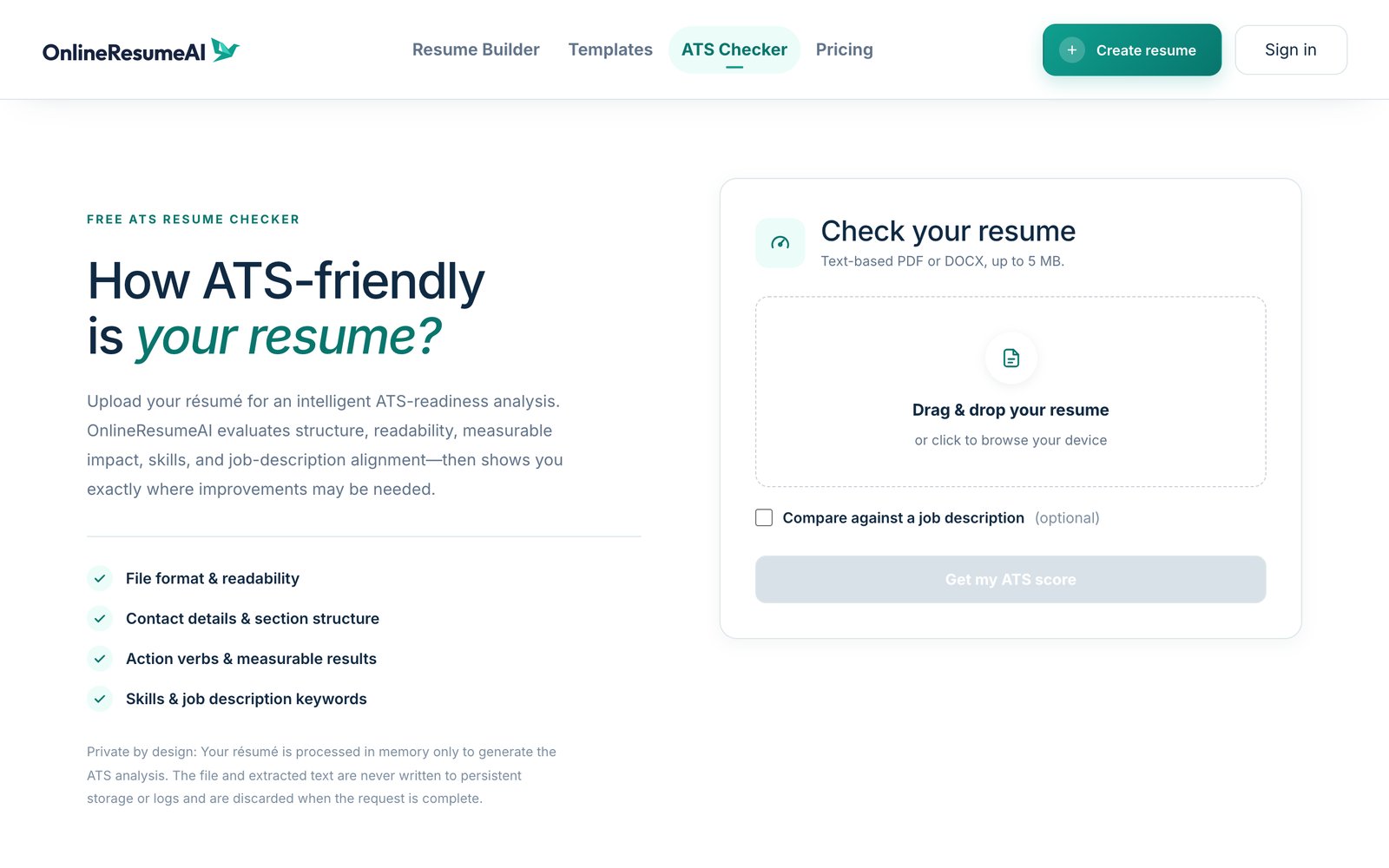
Go to onlineresumeai.com/ats-checker. It's free, and you don't need an account.
Step 2: Upload your resume and add a job description
- Drag and drop your resume into the box, or click to browse. It accepts a text-based PDF or DOCX, up to 5 MB.
- Tick "Compare against a job description" and paste the job ad you're applying for. This step is optional, but we strongly recommend it.
- Click Get my ATS score.
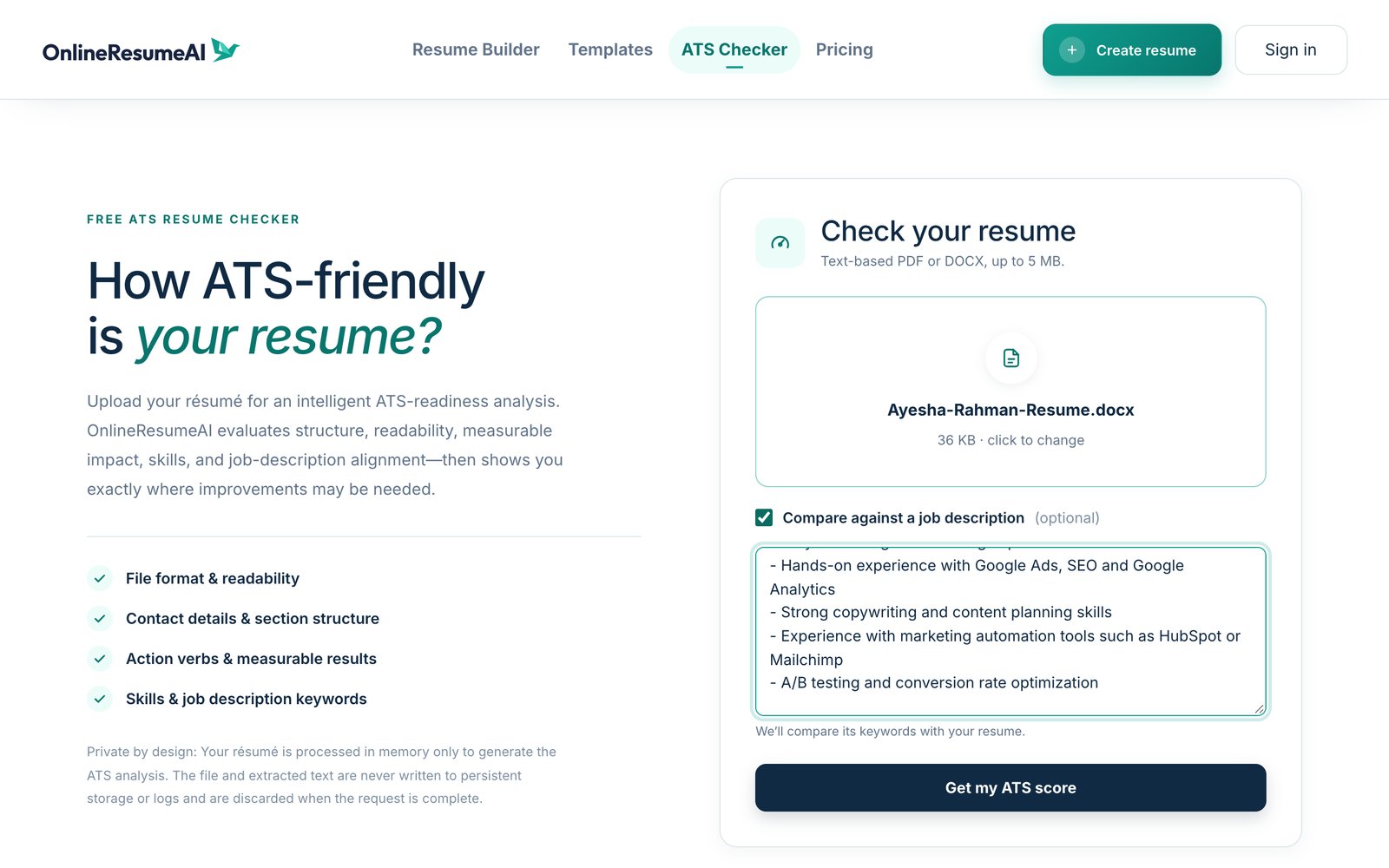
For this guide we used a sample resume for a Marketing Coordinator and a job ad for a Digital Marketing Specialist.
Step 3: Read your score
In a few seconds you'll see your ATS score out of 100, a rating, and a short summary of what to improve. Our first check scored 77 / 100: Good, with "3 checks to improve."
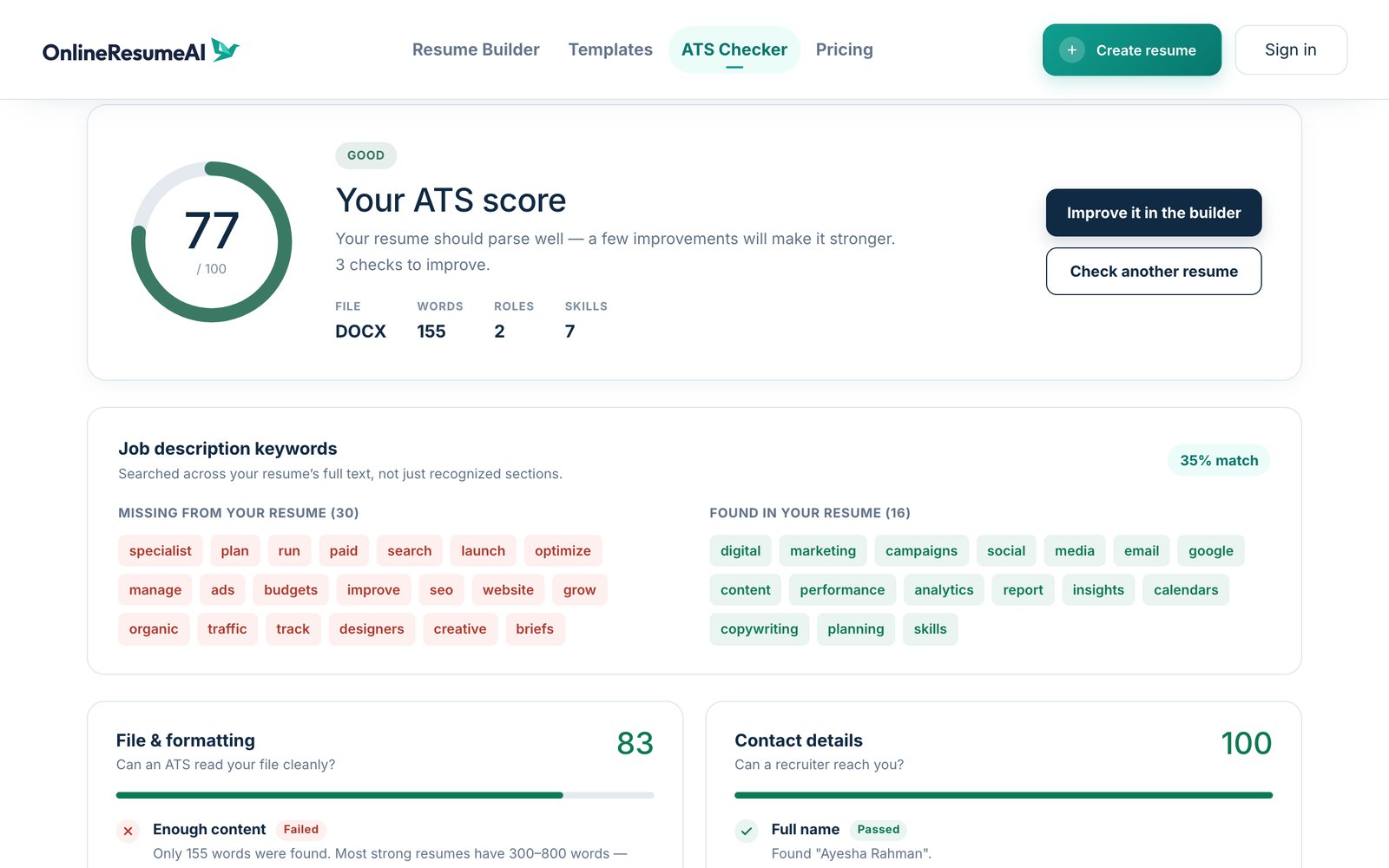
What the ratings mean:
| Score | Rating |
|---|---|
| 80–100 | Excellent |
| 65–79 | Good |
| 50–64 | Needs work |
| Below 50 | Poor |
Under the score you'll also see quick facts about your file: its type, word count, number of roles, and number of skills found.
Step 4: Check your job description keywords
If you pasted a job ad, the Job description keywords panel is the most useful part of the report. It shows:
- Missing from your resume (in red): words from the job ad that don't appear in your resume
- Found in your resume (in green): words you already share with the job ad
- Your match percentage
Our example matched only 35%. The job asked for things like SEO, paid search, Google Ads, budgets, organic traffic and creative briefs, and the resume didn't mention any of them.
Step 5: Work through the checks, one category at a time
Scroll down to see every category with its own score, and each individual check marked Passed or Failed, with a clear explanation.
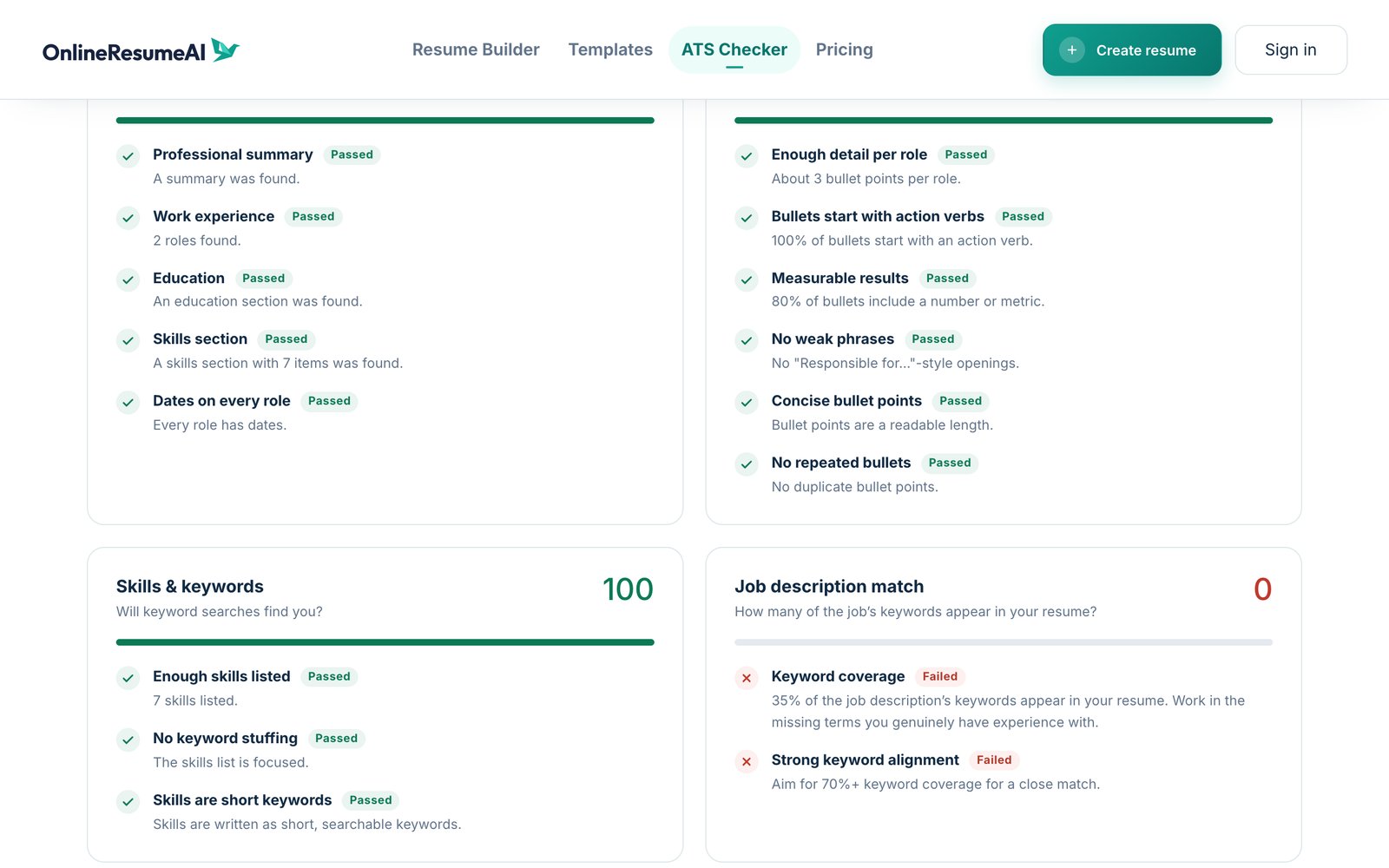
In our example:
- ✅ Contact details, Section structure, Experience impact and Skills all scored 100. Every bullet started with an action verb, and 80% included a number.
- ❌ Enough content failed. "Only 155 words were found. Most strong resumes have 300–800 words."
- ❌ Job description match failed at 35% coverage, with a suggestion to "Aim for 70%+ keyword coverage for a close match."
Step 6: Improve your resume and check again
Based on the report, we made a few honest updates to the example resume:
- Added bullets about work the candidate had actually done: managing a Google Ads budget, improving SEO for website pages, and running A/B tests
- Expanded the summary to use the job's language, like digital marketing specialist, paid search and organic traffic
- Added real tools to the skills list (SEO, Google Ads, A/B Testing, Mailchimp)
Then we clicked Check another resume and uploaded the new version against the same job ad.
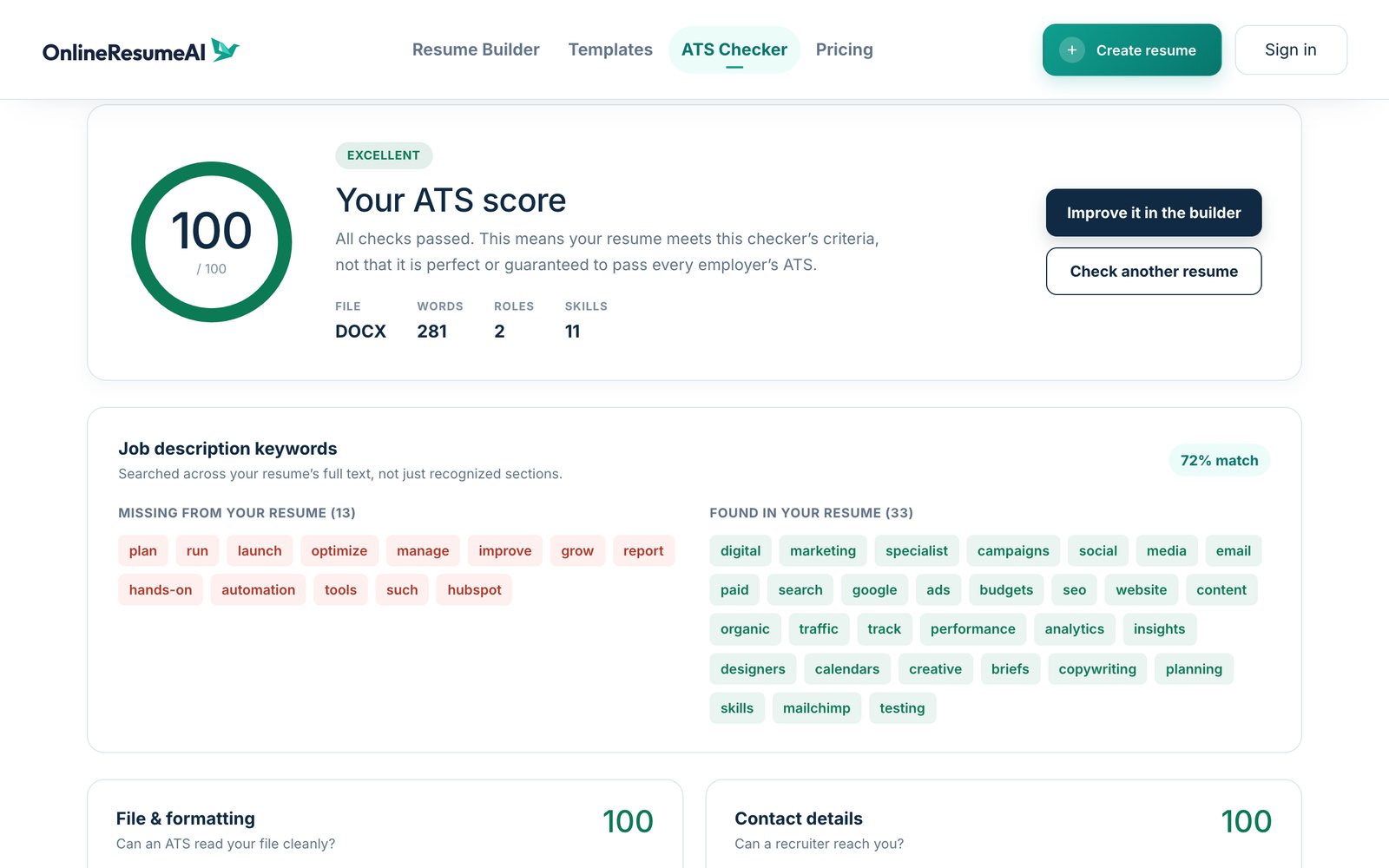
The result: the score went from 77 to 100 (Excellent), and the keyword match went from 35% to 72%. The word count also grew from 155 to 281, which cleared the Enough content check.
Step 7: Make the changes in the resume builder
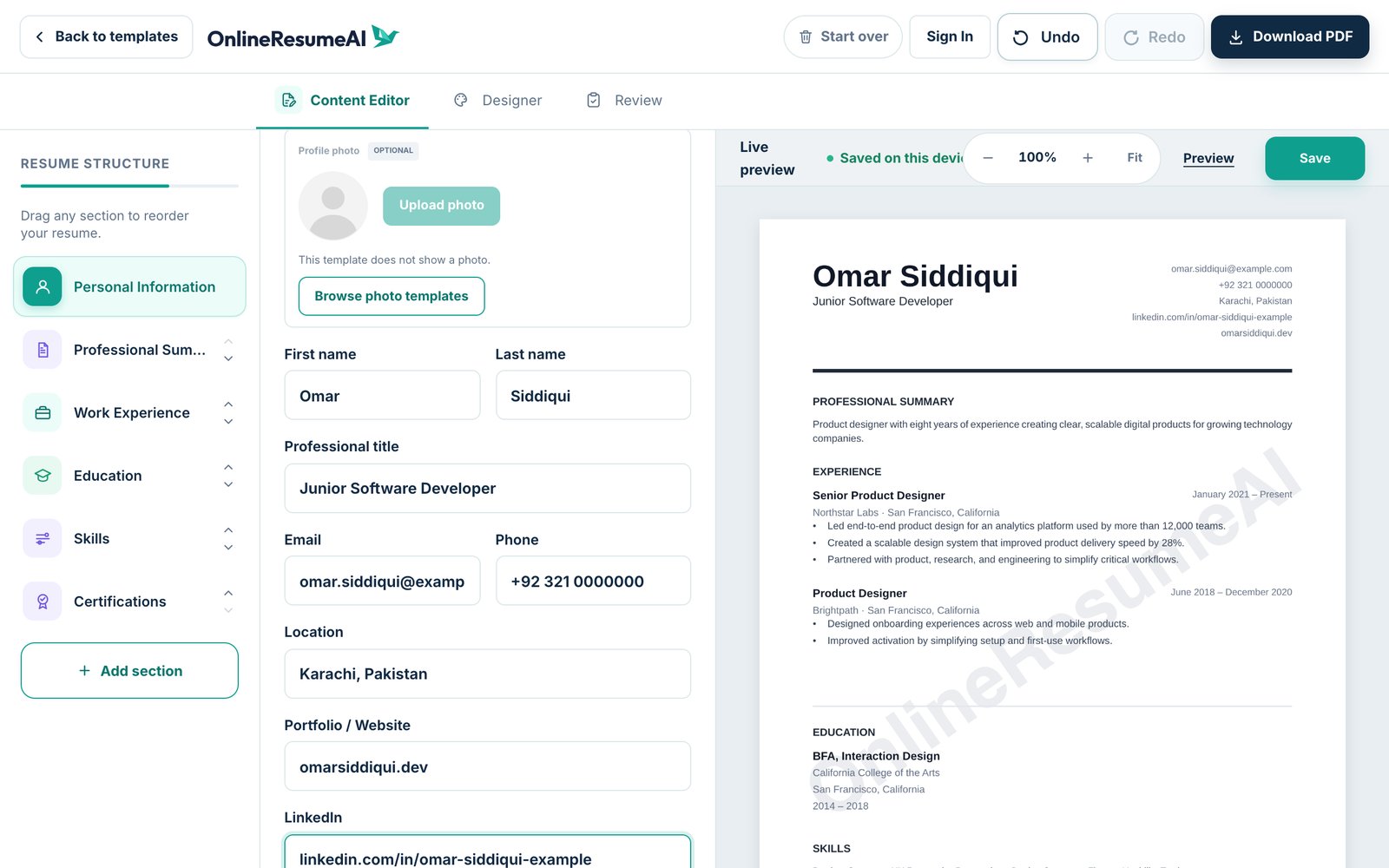
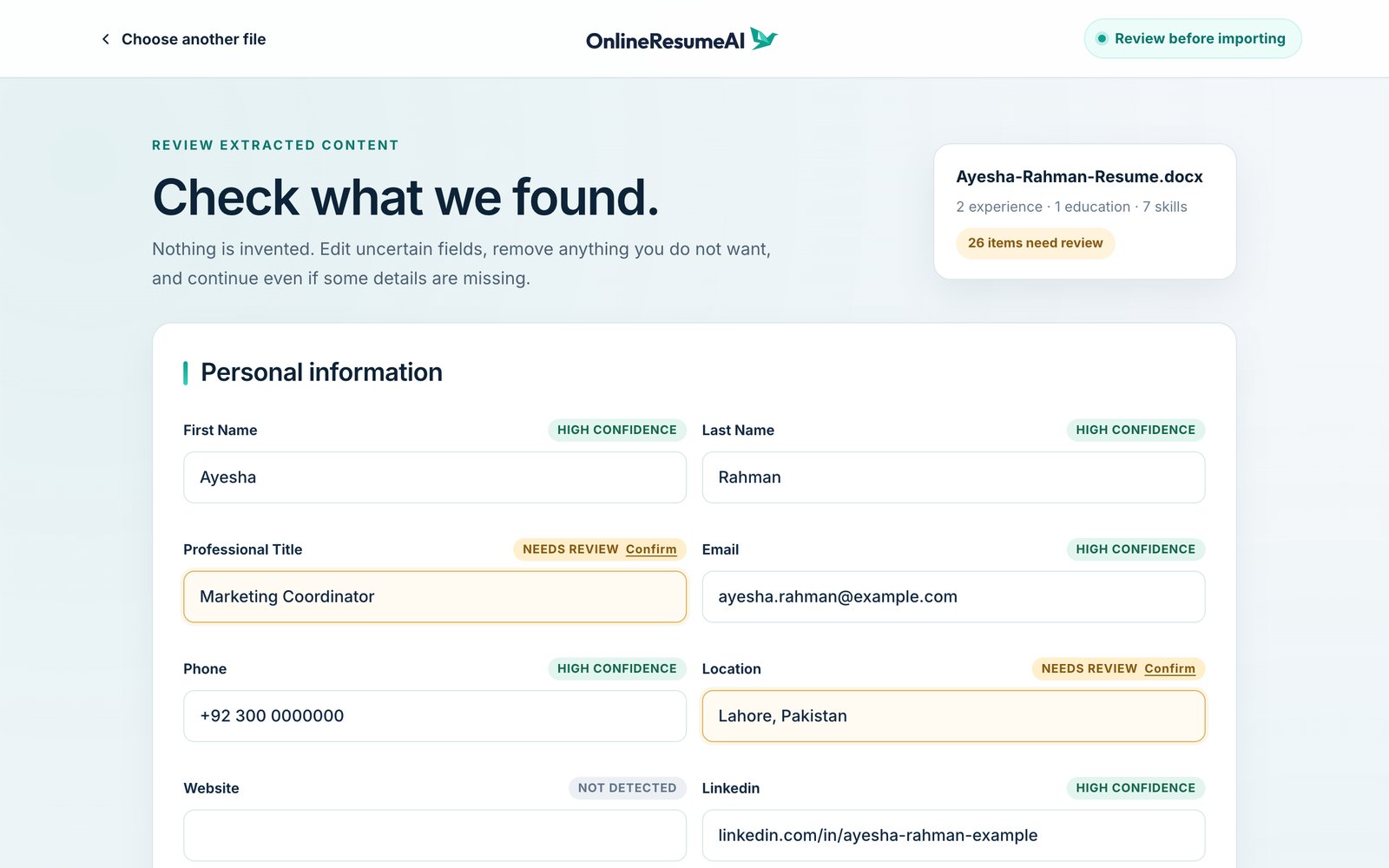
Happy with what you learned? Click Improve it in the builder. It takes you to the resume upload page, where you can import the same file, make your changes with a live preview, and choose a clean, ATS-friendly template.
New to the builder? Our guides How to create your first resume and How to turn your old resume into a new design walk you through it.
Quick tips for a more ATS-friendly resume
- ✅ Use a text-based PDF or DOCX. Avoid scanned images of your resume.
- ✅ Use standard section headings, like Summary, Experience, Education and Skills.
- ✅ Put your contact details at the top: name, email, phone, location and LinkedIn.
- ✅ Start bullets with action verbs and include numbers where you can.
- ✅ Mirror the job ad's key terms, but only for skills you really have.
- ✅ Add enough detail. Very short resumes can be flagged as too thin.
- ✅ Check again for every job. Each job ad uses different keywords.
Wrapping up
An ATS doesn't have to be a black box. With OnlineResumeAI's free ATS Resume Checker you can:
- See how readable and complete your resume is
- Find the job keywords you're missing
- Fix exactly what each failed check points out
- Re-check in seconds to see your progress
It's free, there's no sign-up, and your file isn't stored.