How to Turn Your Old Resume or LinkedIn Profile Into a New Design in Minutes
You already have a resume. Maybe it's an old Word file, or a PDF you made years ago. Or maybe your career history lives on your LinkedIn profile. Either way, the hard part is done: the content exists.
What you probably don't want is to type it all again just to get a cleaner, more modern design.
With OnlineResumeAI's smart resume import, you upload the file you already have. The app automatically organizes your details into editable sections, you check them, and then you see your own content in professional templates. This guide walks you through each step.
What you'll need
- Your resume as a PDF or DOCX file, up to 5 MB, or
- Your LinkedIn profile saved as a PDF (we'll show you how below)
- A few minutes. No account is needed to get started.
Step 1: Choose how you want to start
Go to Create resume. You'll be asked "How would you like to start?" and see three options:
- Start with a template. Pick a design and fill it in yourself.
- Import from LinkedIn. Use your LinkedIn profile PDF.
- Upload an existing résumé. Continue with a PDF or DOCX file you already have.
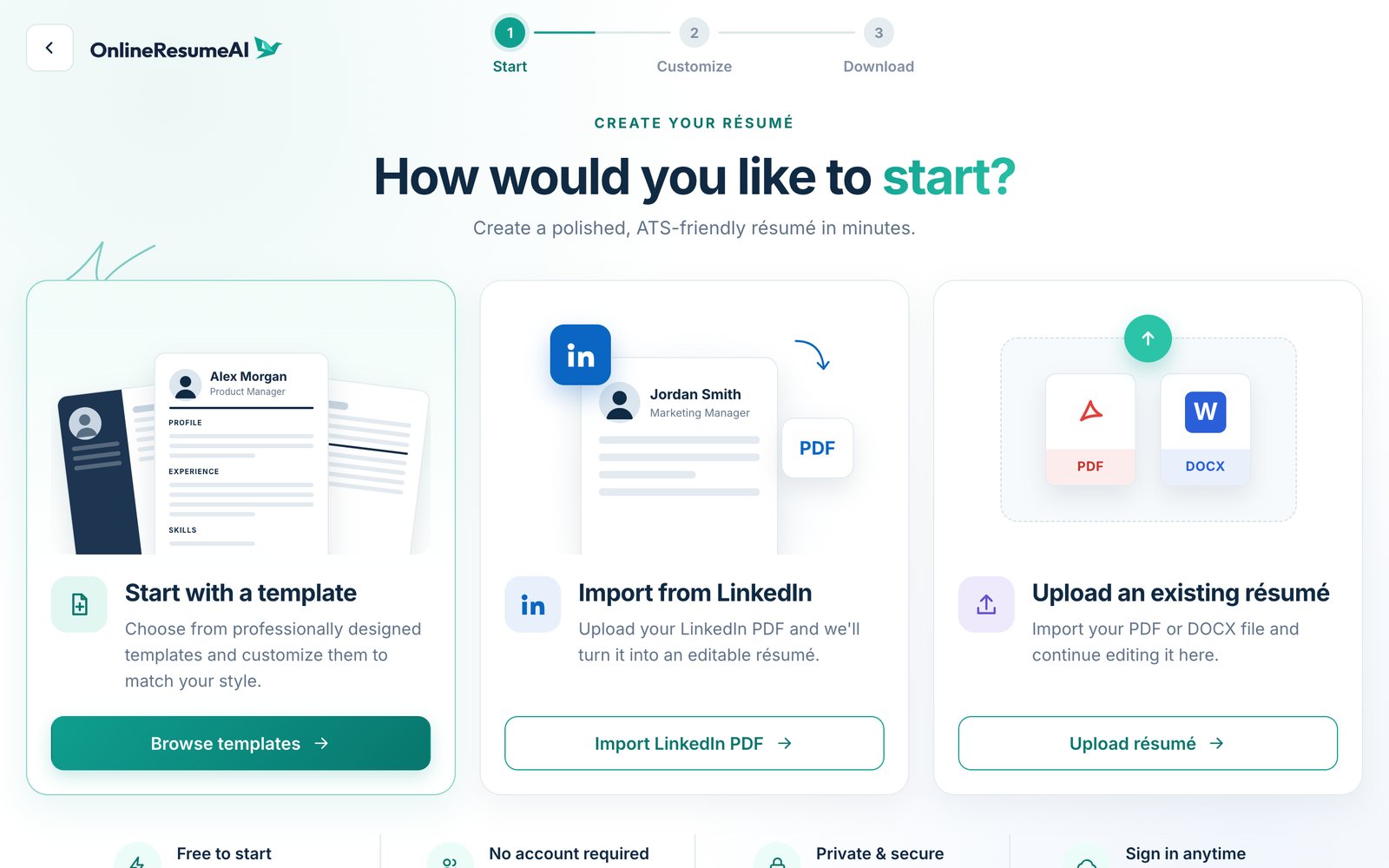
Click Upload résumé if you have a resume file, or Import LinkedIn PDF if you'd rather start from your profile.
Step 2 (LinkedIn only): Save your profile as a PDF
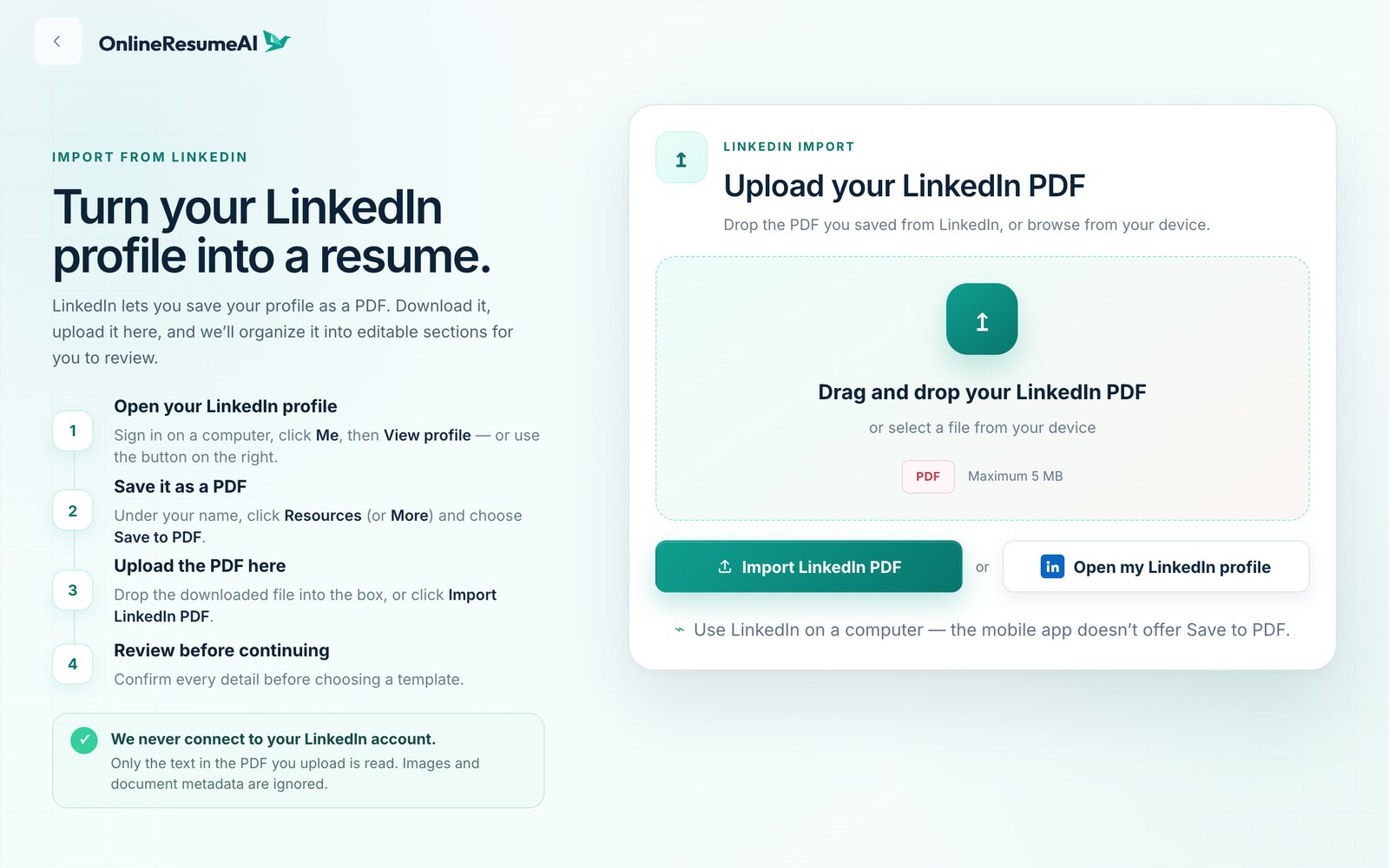
LinkedIn lets you download your own profile as a PDF. Here's how:
- Open your LinkedIn profile on a computer. Click Me, then View profile. You can also use the Open my LinkedIn profile button on the import page.
- Save it as a PDF. Under your name, click Resources (or More) and choose Save to PDF.
- Upload that PDF on the import page.
Step 3: Upload your file
Drag your file into the upload box, or click Choose a file.
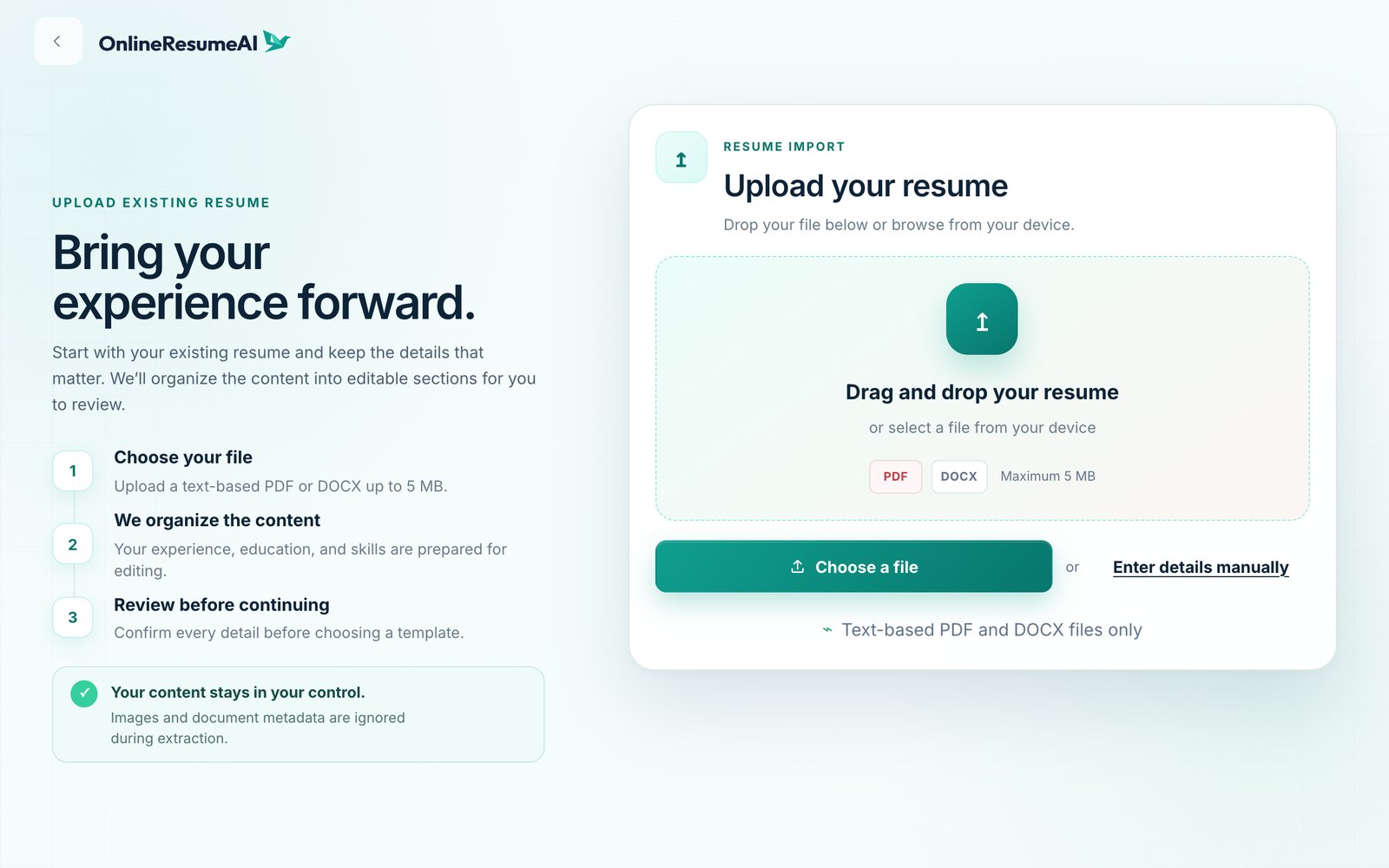
As soon as the file is added, OnlineResumeAI gets to work. A progress bar shows each stage: Uploading securely → Reading document → Identifying sections → Organizing content → Preparing review.
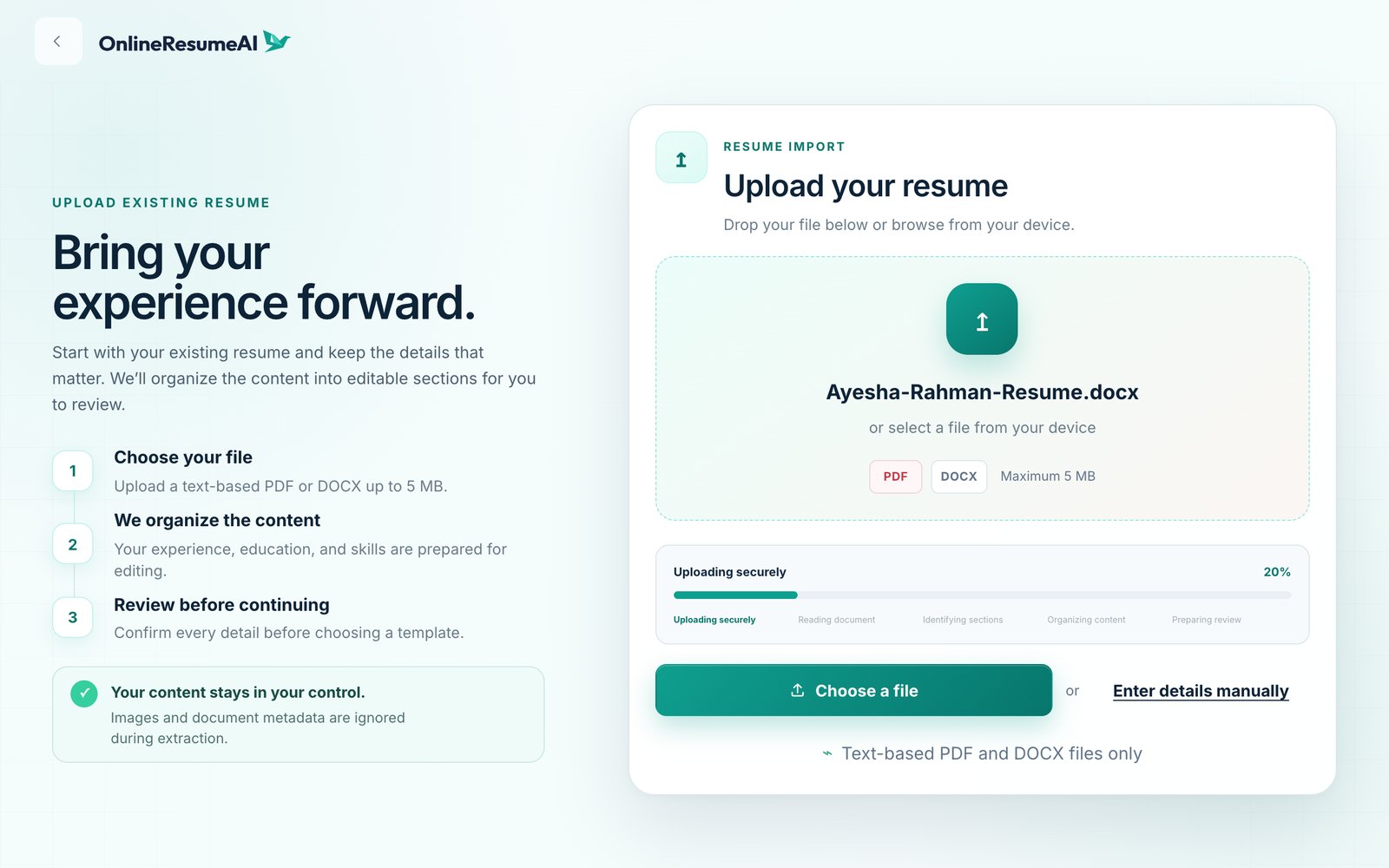
It usually takes just a few seconds.
Step 4: Check what we found
Next you'll see the review screen. Your details are sorted into clear sections: Personal information, Professional summary, Work experience, Education, Skills, and Certifications and other sections.
The card at the top right gives a quick summary, such as "2 experience · 1 education · 7 skills."
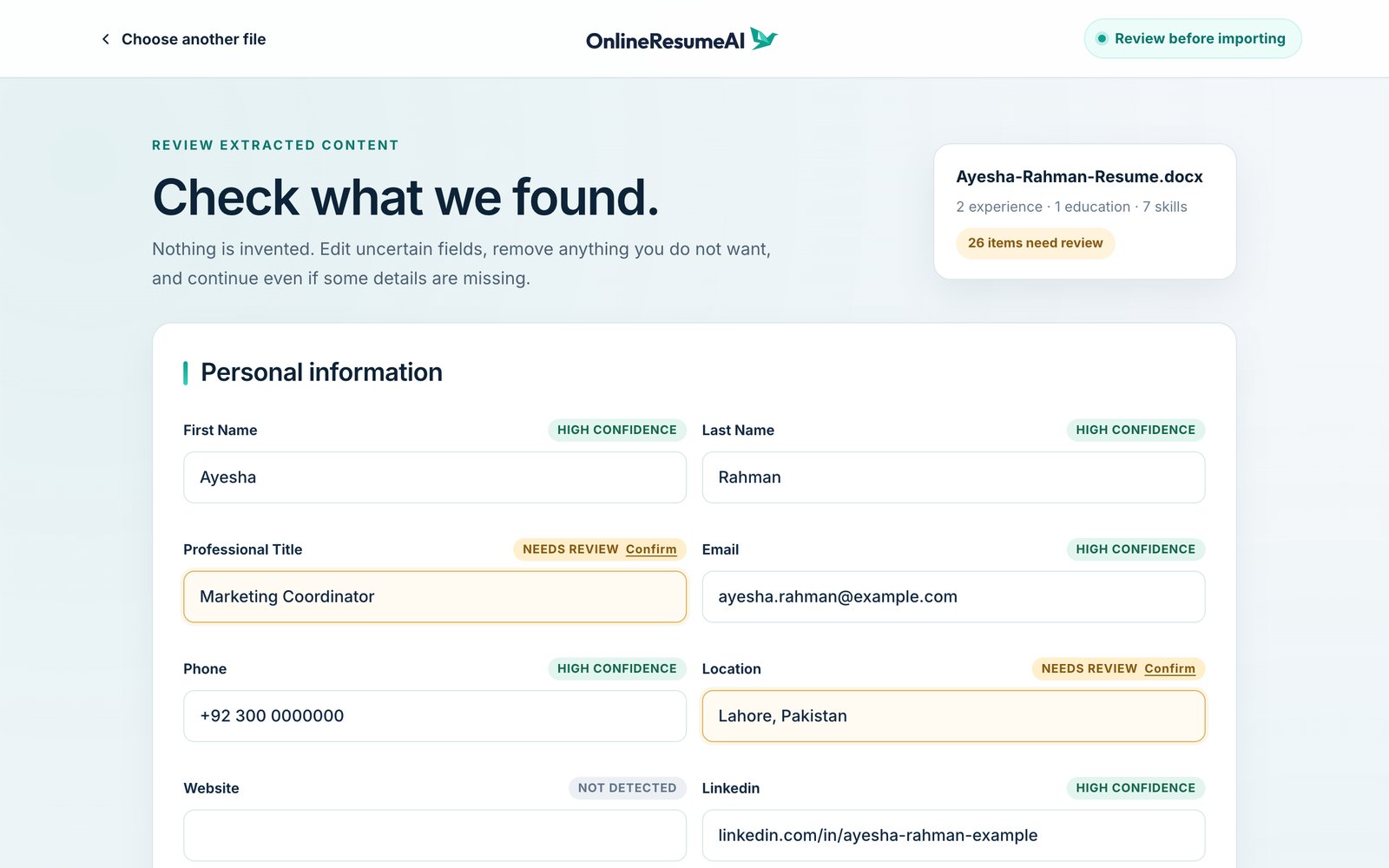
Each field has a small label so you know where to look:
| Label | What it means |
|---|---|
| HIGH CONFIDENCE | The detail was recognized clearly. |
| NEEDS REVIEW | Take a quick look. If it's right, click Confirm. If not, fix it in the box. |
| NOT DETECTED | Nothing was found for this field. Fill it in, or leave it empty. |
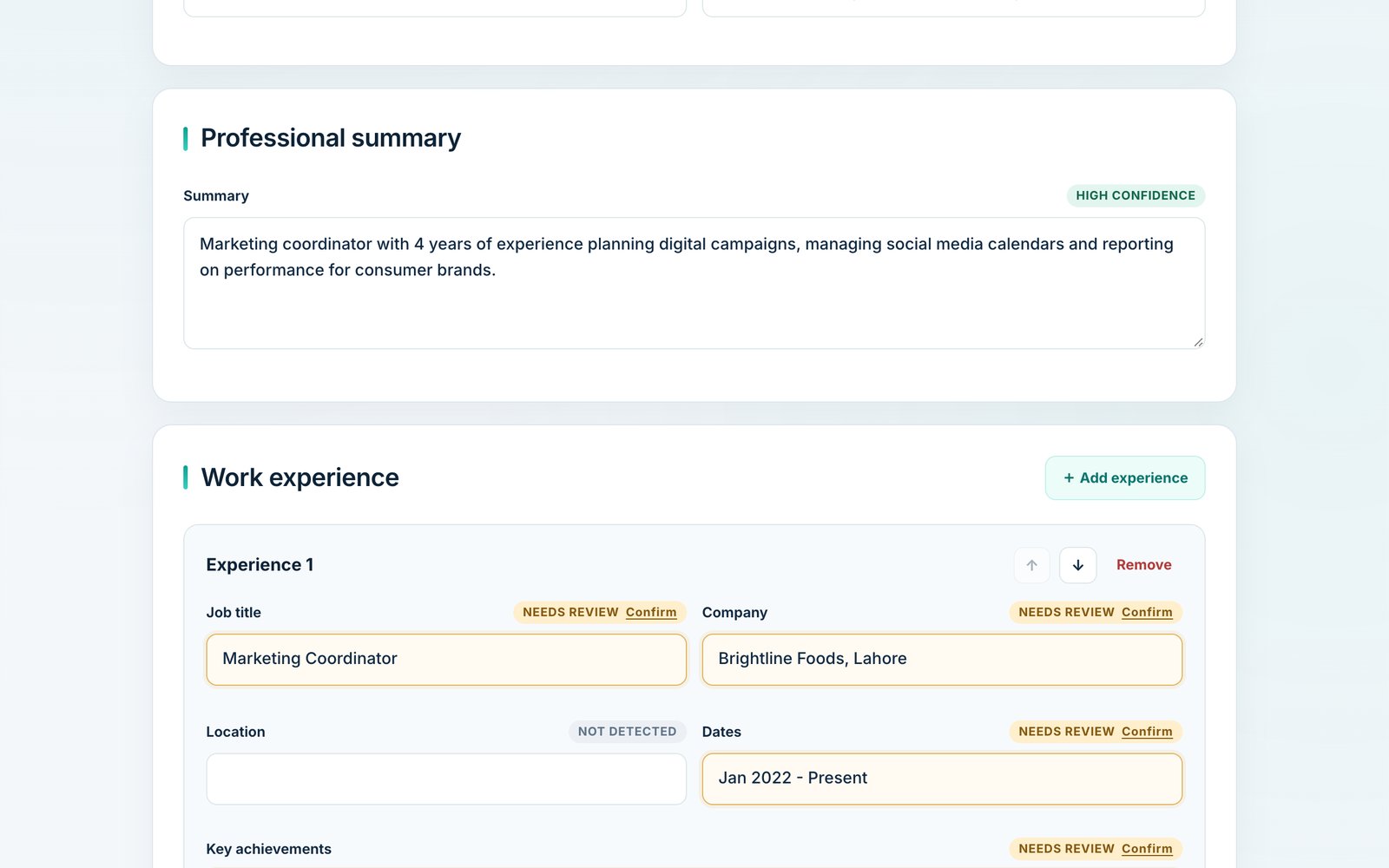
Every field can be edited right there. In Work experience, you can also:
- Add a job you'd like to include (+ Add experience)
- Reorder jobs with the ↑ and ↓ arrows
- Remove anything you don't want
When you're happy, scroll down and click Choose a template.
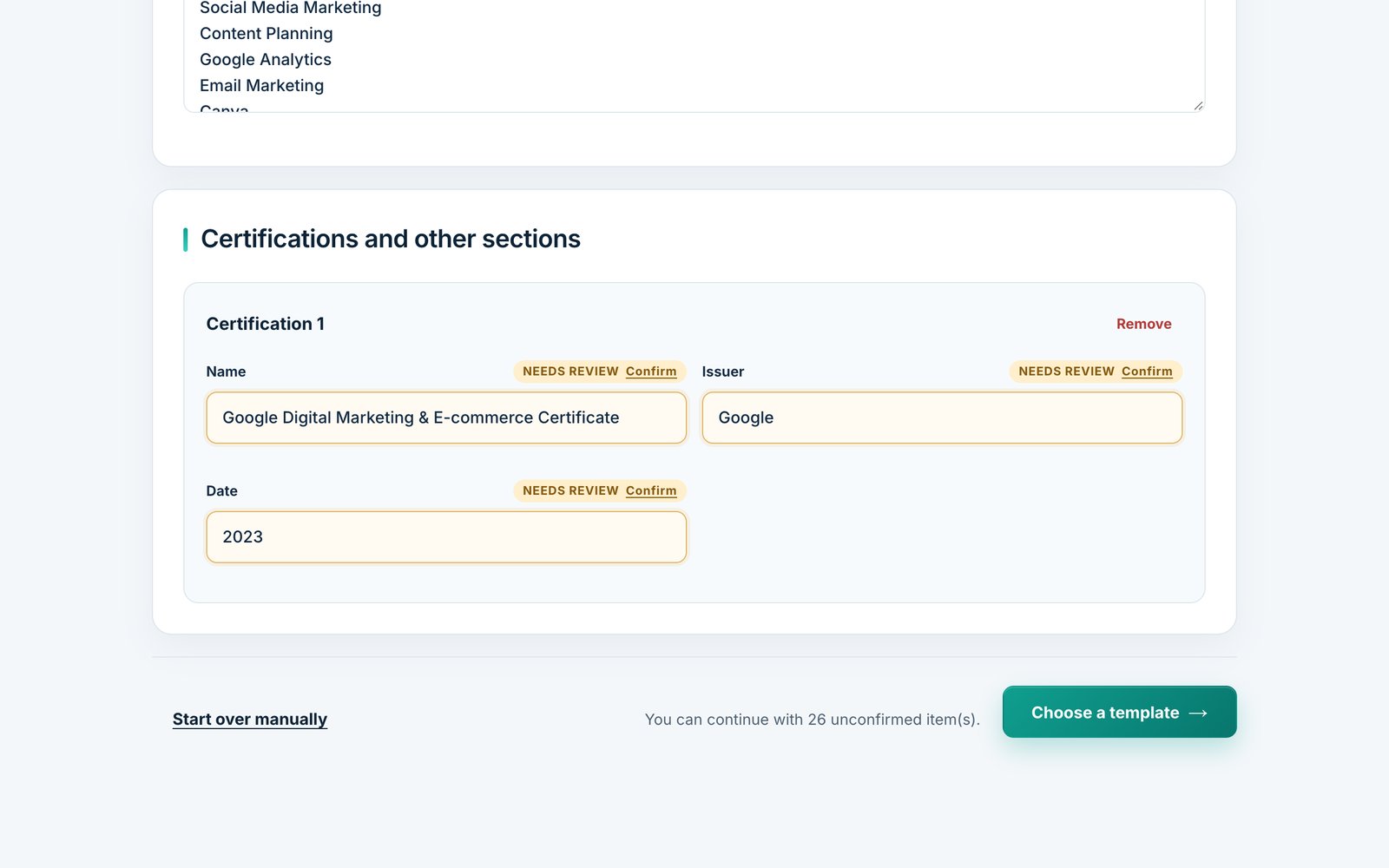
If the import didn't go the way you hoped, click Start over manually to fill in your details yourself instead.
Step 5: See your resume in every template
This is the fun part. The template gallery now shows your own content, not placeholder text, in every design. You can compare layouts with your real name, jobs and skills in place.
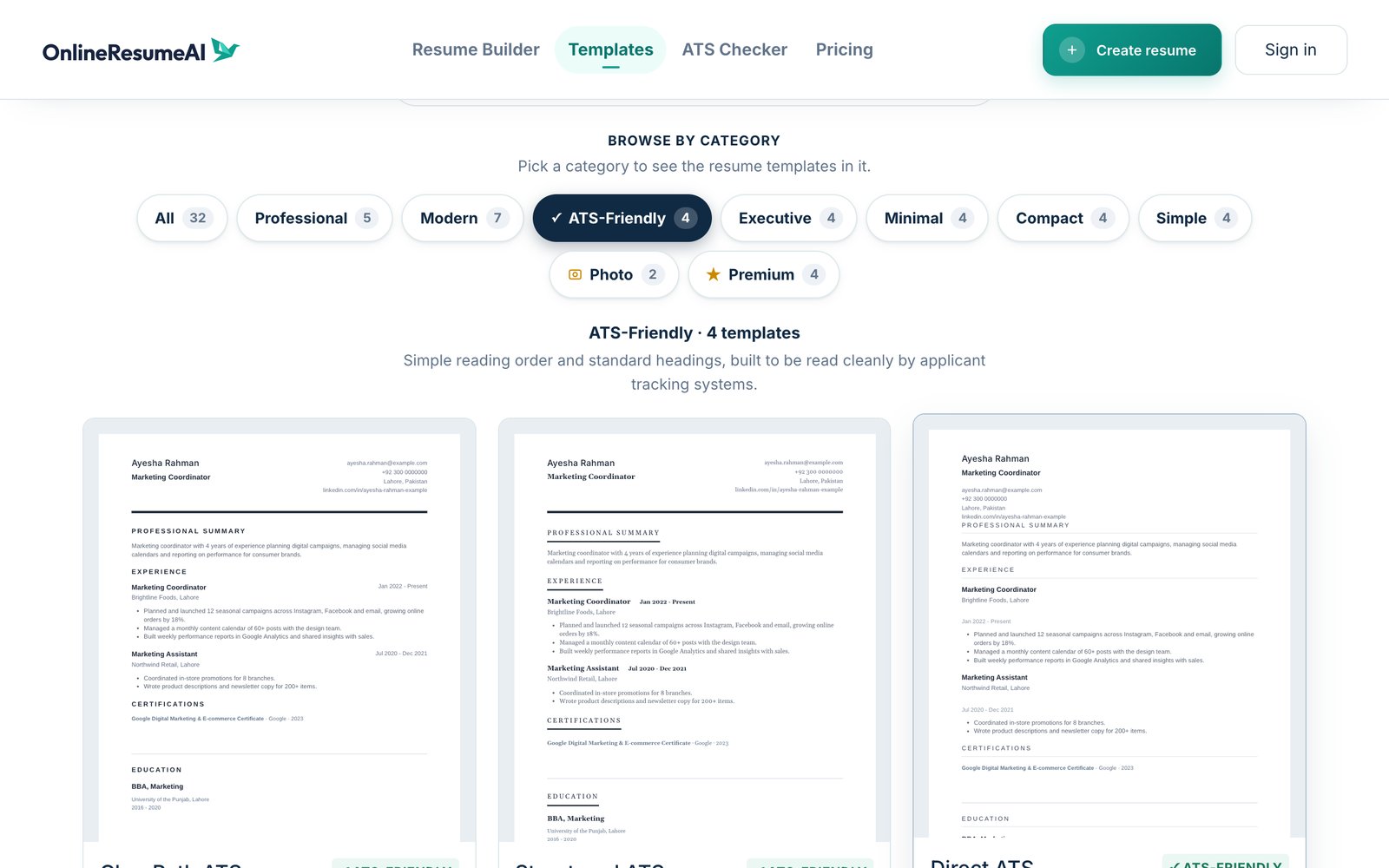
- Use the category tabs (Professional, Modern, ATS-Friendly, Executive, Minimal, Compact, Simple and more) or the search box to narrow things down.
- Click Preview on any template for a larger view and a short list of what makes that design stand out.
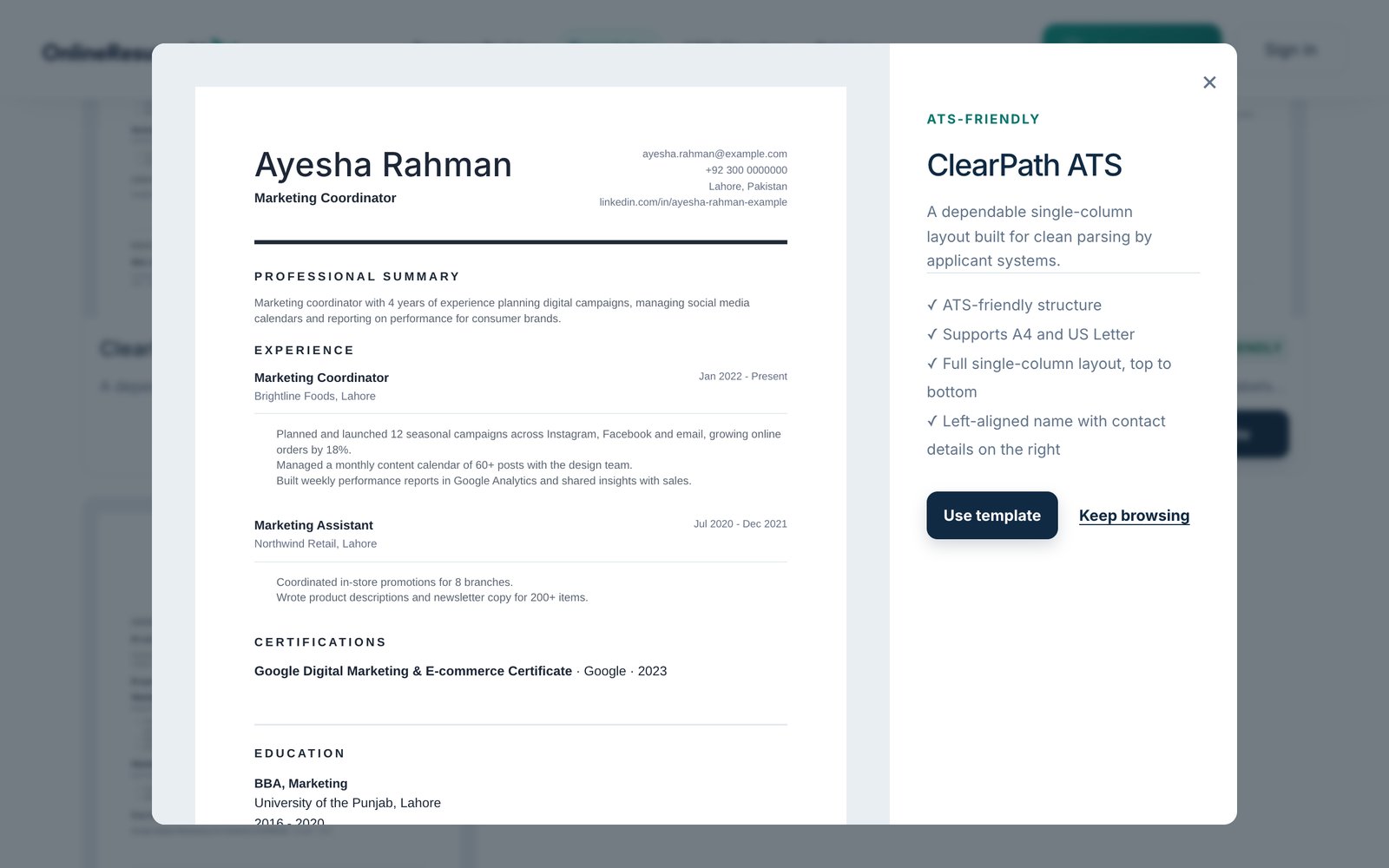
When you find the one you like, click Use template.
Step 6: Keep editing, with everything already filled in
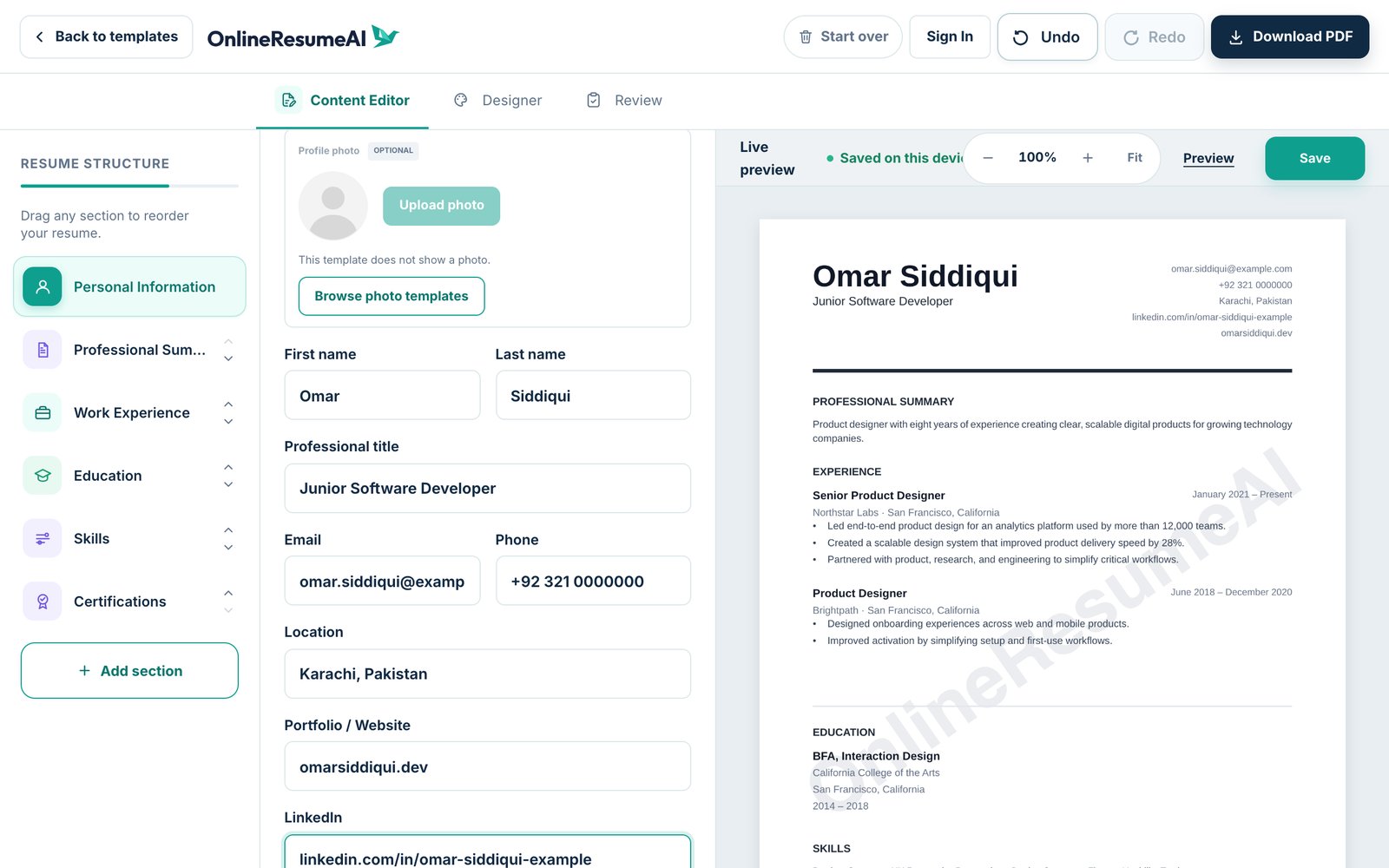
Your chosen template opens in the resume editor with all of your imported details already in place, and a live preview that updates as you type.
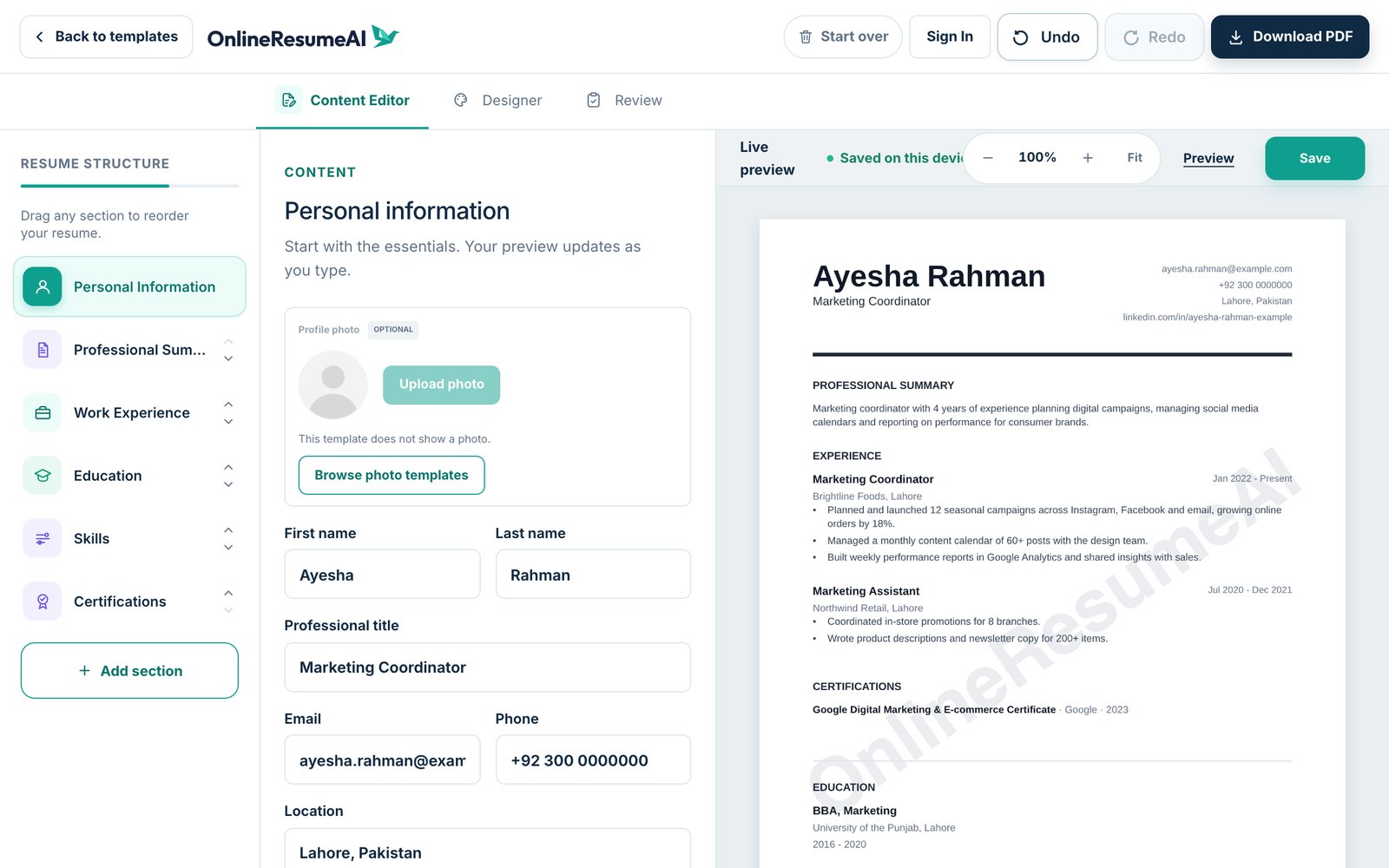
From here you can:
- Polish your content in the Content Editor, and drag sections to change their order
- Add sections like Projects, Languages or Awards with + Add section
- Change the template, fonts and spacing in the Designer tab. Your content stays exactly as it is when you switch designs.
- Check your resume in the Review tab
As a guest, your work is saved on this device automatically. When you're ready to download your PDF, create a free account (or sign in). Resumes downloaded on the Free plan include a small watermark; the Basic and Pro plans remove it.
Quick tips for the best import
- ✅ Use your most recent resume, so there's less to update afterwards.
- ✅ Stick to text-based files. If you can highlight the words in your PDF, it will import well.
- ✅ Keep it under 5 MB. Resumes are usually far smaller than this.
- ✅ Give the review screen a quick scan. A minute spent checking job titles and dates saves you editing later.
- ✅ Pick your template before refreshing the page. The imported preview is temporary until you do.
Wrapping up
You shouldn't have to retype your career history to get a better-looking resume. With OnlineResumeAI's smart import, you can:
- Upload your existing resume or LinkedIn PDF
- Review the automatically organized sections
- See your real content in professional templates
- Keep editing in a live editor, with nothing lost
It takes a few minutes, and you can start without an account.